
Your viewers need subtitles in their language, and the event is happening now.
Live subtitlesLive subtitles for your event, in the language each viewer picks.
Each viewer reads the speaker's words in their language, on their own phone, as the speaker talks. When it ends, take the SRT file for your recording.
- Captions in 100+ languages
- A transcript in every language
- Included in every plan
Speaker, in English
“Welcome, everyone. Let's begin.”
See a sample
Watch the subtitles appear as the speaker talks.
A sample: an English talk, subtitled in Portuguese as the speaker talks, with the English the speaker said under it.
Live subtitles in 100+ languages are in every plan. After the session, take an SRT file for your recording.
Sample · an English talk, heard in Portuguese
English speaker, Portuguese subtitles
Subtitles, as they appearPT
Bom dia a todos. Obrigada por se juntarem a nós hoje na Cúpula de Inovação em IA.
Good morning, everyone. Thank you for joining us today at the AI Innovation Summit.
Picture this
A conference stream, subtitled for every viewer.
For example
14:00
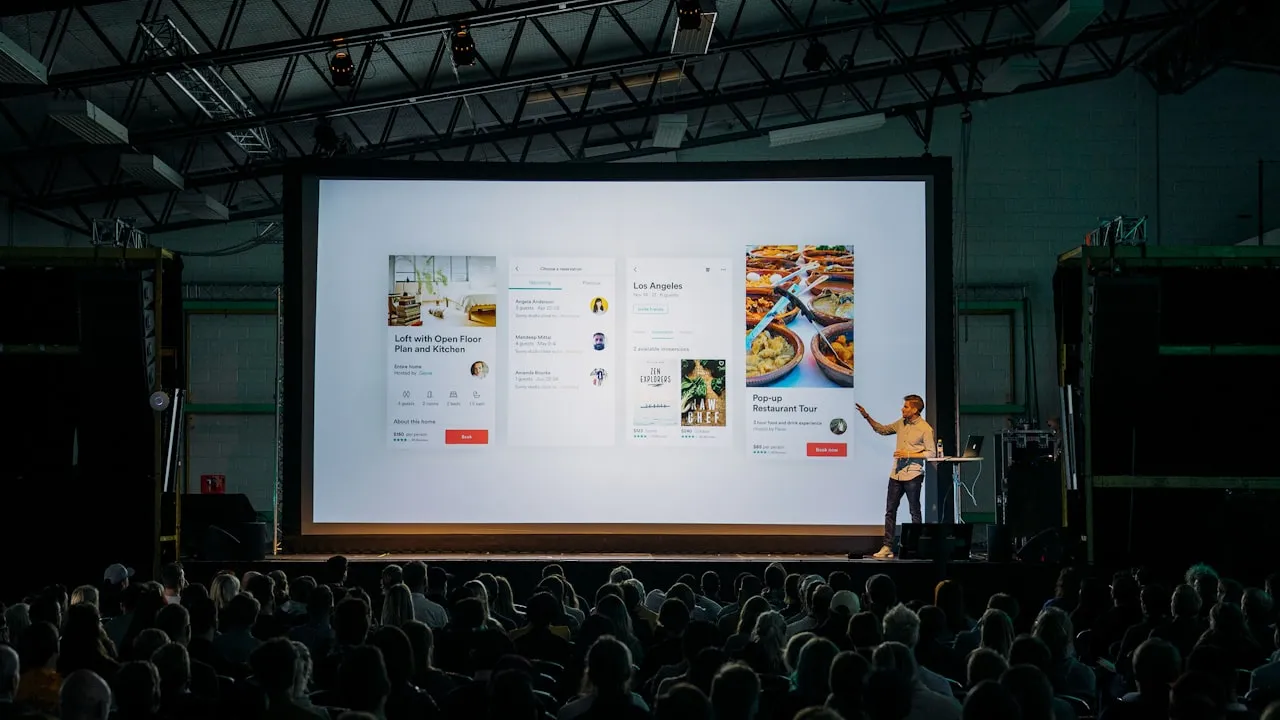
A conference streams its closing talk in English. Viewers are watching from four countries.
14:02
Each viewer opens the same link and picks a language. Subtitles appear under the speaker's words as they talk.
14:50
The talk ends. The organiser downloads an SRT file for each language that was used.
Next day
The SRT files go with the recording the team publishes on its own channel.
 Português · captionsreading on the phone
 Read along · captions
For the listener
From the link to the subtitles in three taps.
The same QR code or link serves the room and everyone watching online. Viewers pick their language and read along.
Step 1
Scan the QR code
On the screen, a poster or the seat card. The guest page opens in the browser. No app, no account.
Step 2
Pick their language
Each language is listed in its own name, so they know what they will read.
Step 3
Read along, make the text bigger
The subtitles appear as the speaker talks. They choose the text size, and scroll back to a line they missed.
For the organiser
You decide which languages are offered, and when the session starts.
Everything runs from the operator console your sound desk already uses for captions.

- Add a language per channel
- Go live: captions start
- Who is listening
Languages, one by one
Captions run in every language on their own. Add a language where your guests need one.
One button to start
Go live, or let standby start it at the session's time after a sound check.
See who is listening
A count per language, so you know which languages are being read.
How guests join
One QR code. Every guest reads in the language they pick.
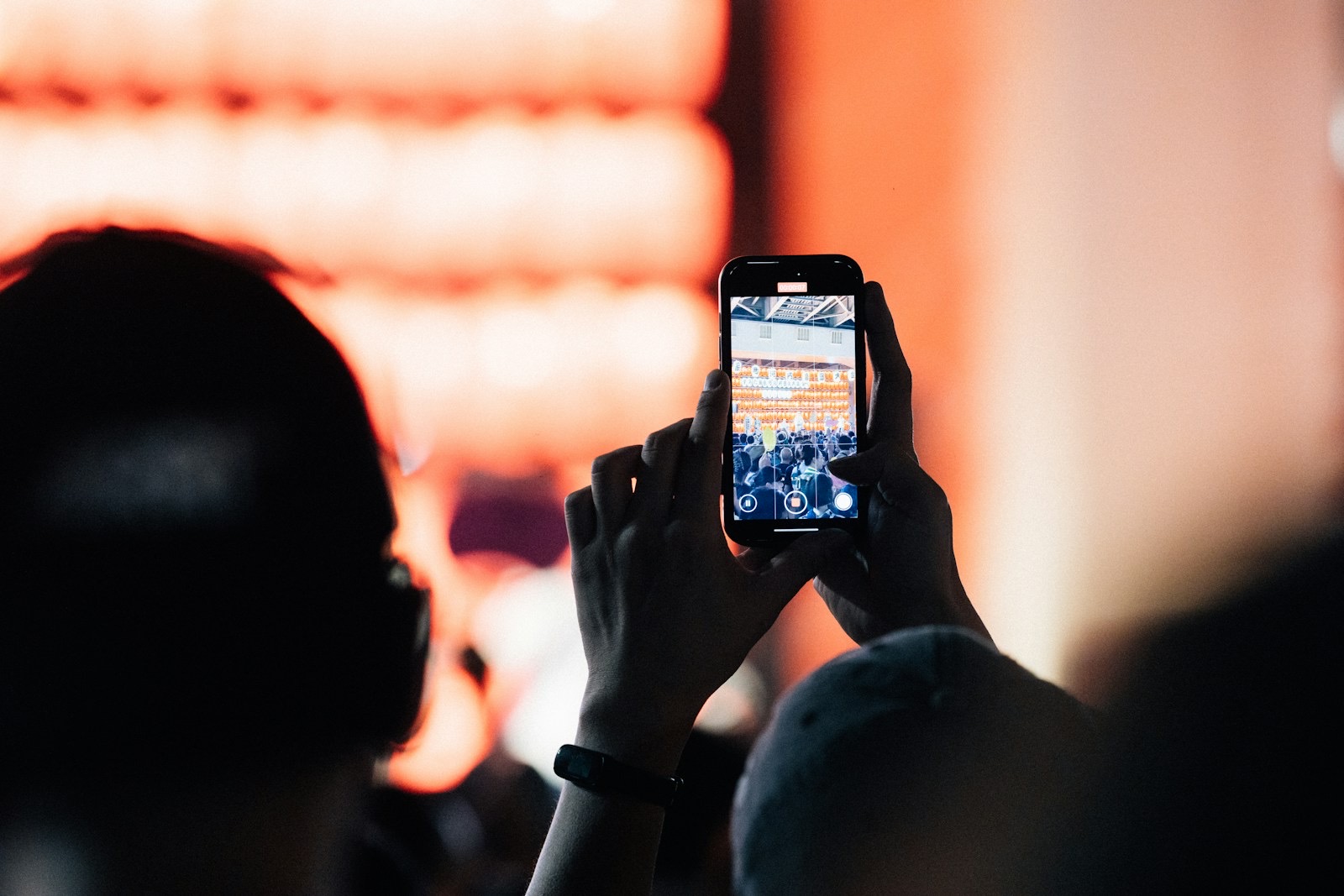
Guests scan the code on a screen, a poster or a seat card, choose a language and read along on the phone they brought. Nobody installs anything.
- 한국어Captions
- EspañolCaptions
- PortuguêsCaptions
- Every other languageCaptions
Example. Languages are illustrative.
How live captioning works
- The QR to print once, from Your portal
- A code for people who type
Good to know
Live speech today, recorded video next.
Live, while they speak
Keynotes, services, lectures and town halls, in the room and online through the same link.
Afterwards, the words in every language
Download the transcript in each language, an SRT file for your recording and an AI summary.
Recorded video
Recorded video: being built
Today
InterScribe captions, translates and voices live events. When a session ends, its recording can be replayed with the captions in step.
What are live subtitles?
Subtitles written while the speaker is still talking, translated into each viewer's language. InterScribe shows them on viewers' phones from one link, and keeps an SRT file per language afterwards.
Do I get an SRT file?
Yes. After a live session you can download an SRT file in each language that was used, to use with your own recording.
Can viewers choose their own language?
Yes. Each viewer opens the same link, picks a language and reads the subtitles on their own phone.
Can it add subtitles to a video file?
Not yet. InterScribe subtitles sessions you run through it, live. Subtitles for recorded videos are being built, launching later in 2026.
How accurate are the subtitles?
Often good, never perfect. Names and unusual terms are the usual misses, so add them to a vocabulary before the day and check the SRT file before you publish it.
Do guests need an app or an account?
No. They scan a QR code or open a link in their phone’s browser. Nothing to install, and no account needed to read or listen.
Will it get names and technical terms right?
Often, with help. Add speakers, places and your own terms to a vocabulary before the day. AI can still get names, quotations and jokes wrong, so test with your real speaker.
Give every viewer subtitles in their language.
Hear a sample first. Then price your rooms and hours.
Photos: Tsuyoshi Kozu and Vitaly Gariev on Unsplash