
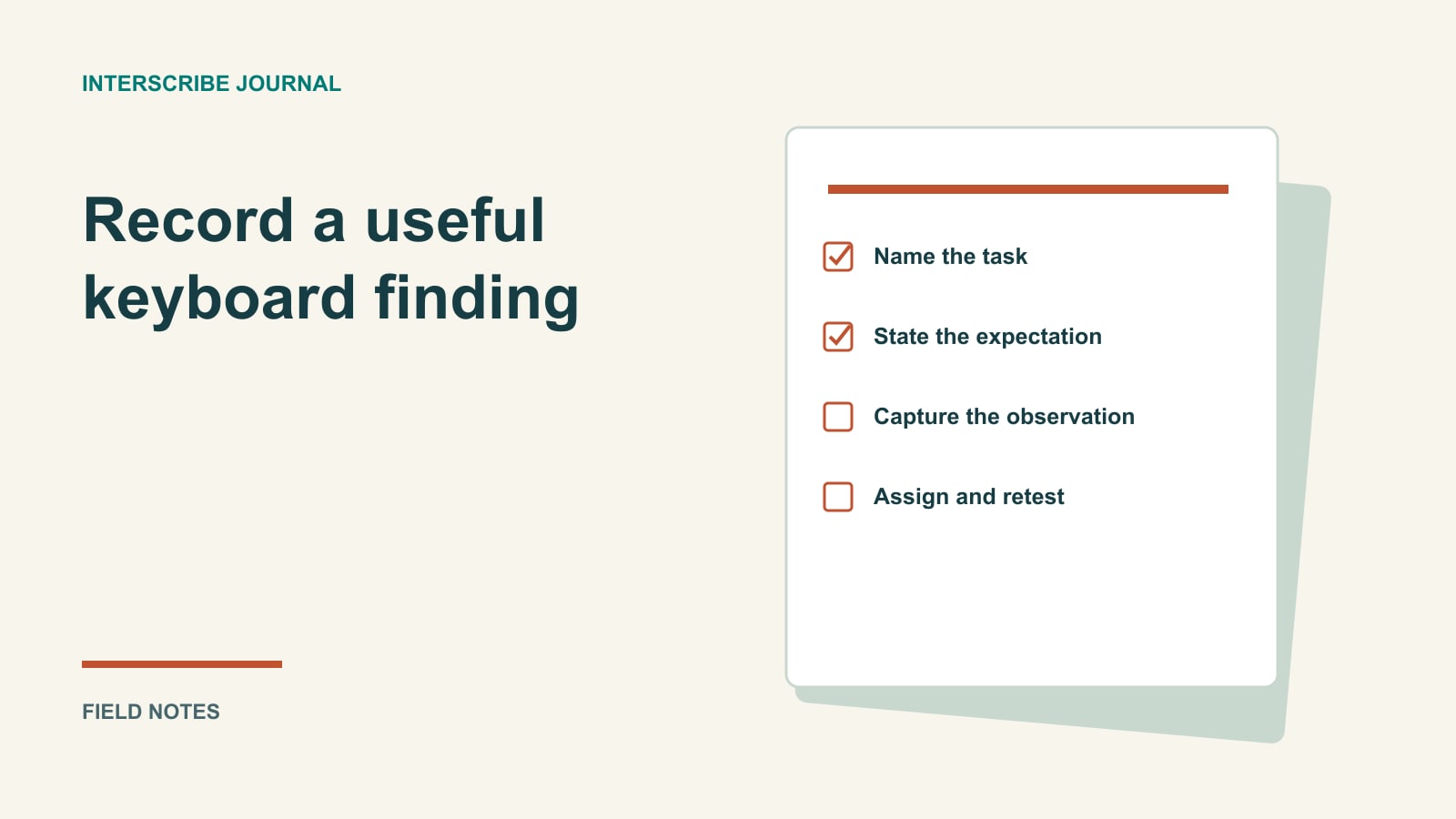
Put the mouse aside and try to join your event. Can you tell where you are? Can you reach the language control, open it, make a choice and continue? If a dialog opens, can you close it without losing your place?
These are useful rehearsal questions for an event team. They do not establish complete accessibility conformance, and a short organizer check cannot replace testing with people who use assistive technology. They can reveal concrete obstacles early enough to fix instructions, escalate defects or arrange an appropriate alternative.
Test a task rather than counting Tab presses
Choose a realistic starting point: the invitation, course page or public portal your attendee receives. Use a fresh browser context without organizer permissions. Record the browser, operating system, page address and test date so another person can reproduce the result.
Move through the journey with the keyboard. Tab and Shift+Tab commonly move between controls; Enter, Space and arrow keys have different roles depending on the control. Follow the control’s expected interaction rather than assuming every menu uses the same keys.
The W3C keyboard guidance explains the importance of making functionality operable through a keyboard interface. Your rehearsal should therefore include completing actions, not merely reaching their labels.
Use this task sheet
| Task | What to observe | Evidence worth keeping |
|---|---|---|
| Open the intended session | The destination and next action are understandable | Starting URL and the displayed session name |
| Enter required access details | Labels, errors and correction path are usable | Exact field and message encountered |
| Choose an available language | Control can be reached, operated and left | Key sequence and selected option |
| Open a help or question dialog | Focus moves into the dialog and remains understandable | Focus location after opening |
| Close the dialog | The user can leave it and resume the task | Closing key or control and returned focus |
| Reach the next useful action | Focus is visible and the sequence makes sense | Screenshot and steps if focus is lost |
Do not record passwords, access codes or personal messages in a defect report. Use a synthetic test session for evidence you need to share widely.
Check order and visibility separately
A page can have a sensible sequence but an invisible focus indicator. It can also show focus clearly while moving through controls in a confusing order. Record these as different observations because their fixes may differ.
The W3C focus-order guidance concerns a sequence that preserves meaning and operability. It does not require every focus step to mirror the page’s visual position exactly. For a responsive event page, ask whether the sequence helps someone complete the task, especially when content changes after an action.
Try moving backward as well as forward. A user who overshoots the language control should have a usable way to return. At a narrower window size, repeat the important tasks; navigation controls may have moved into a menu.
Understand the modal-dialog exception
Keeping focus inside an open modal can be the expected behavior. A modal asks the user to complete or dismiss that interaction before returning to the page. The problem is not simply that Tab stays inside it; the problem is being unable to operate or leave it appropriately.
The W3C modal dialog pattern describes keyboard behavior including Escape to close and an appropriate focus destination afterward, commonly the invoking control. Use that pattern when reporting a modal issue. Do not label every contained focus sequence a keyboard trap.
Also distinguish a modal from a menu, a non-modal panel or an ordinary page section. If you are unsure which pattern the interface implements, report the observed behavior and task impact instead of diagnosing its code.
Fictional worked example: a language chooser
The following records are invented examples of a useful report format, not findings about InterScribe.
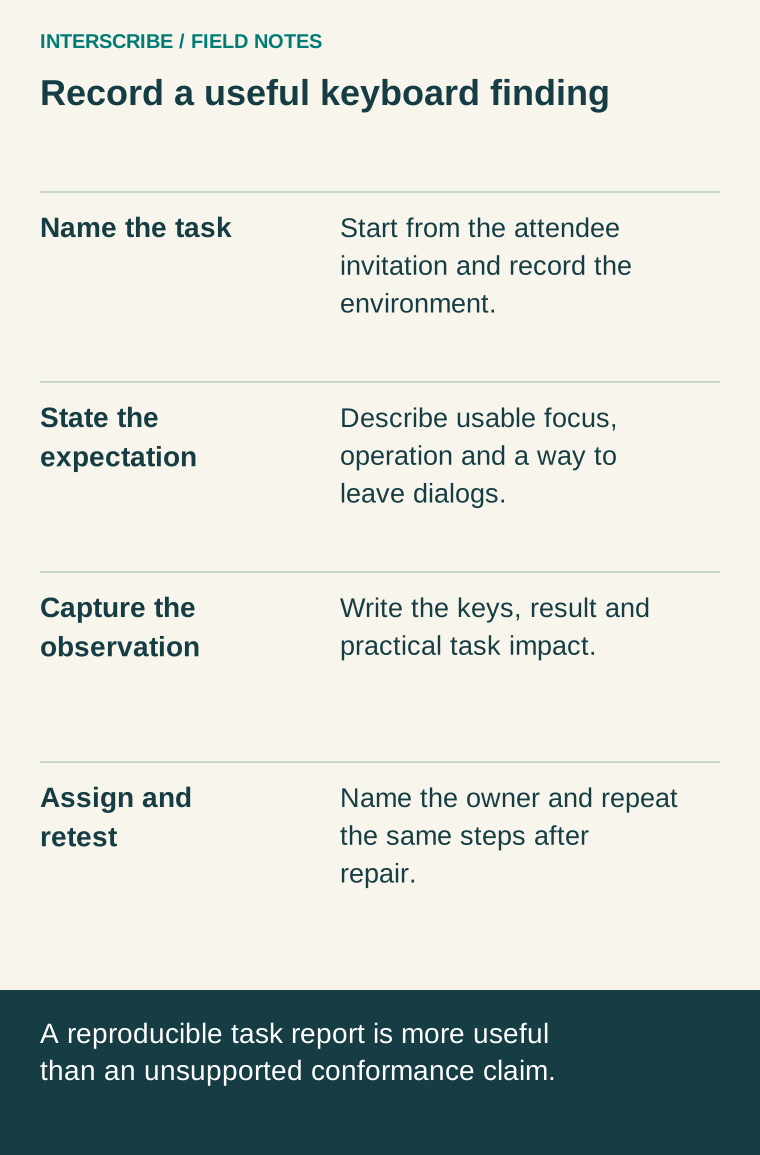
Task: Choose Spanish captions in a rehearsal session.
Steps: Open the invitation; Tab to the language control; activate it; use the expected option controls; select Spanish; continue to the next action.
Expected: The selection is understandable and keyboard focus remains visible.
Observed in this fictional example: The choice changes, but focus is no longer visibly identifiable.
Impact: The tester cannot confidently continue to the question control.
Owner and next action: Product support reproduces the issue using the supplied browser details and screenshot; the organizer retests the same path after the fix.
A second fictional record concerns a question dialog:
Task: Open the question dialog and return without submitting.
Steps: Focus its opening control; activate; press Escape.
Expected: The dialog closes and focus returns to an appropriate place for continuing.
Observed in this fictional example: The dialog closes, but the next Tab starts near the top of the page.
Impact: The attendee must navigate the page again to resume.
Next action: Record the actual returned focus location and send the reproduction to the responsible team.
Neither example needs a speculative legal label or a claim that all users are blocked. It states the action, observation and practical consequence.
Include the access journey in the rehearsal
If the session requires an access code, test the correct route. Direct web links and QR codes do not prompt for it; use the join page or portal with the event code and access code. A partnership pass can additionally require a signed-in listener with a valid pass. Follow joining a session and listener accounts when preparing the test.
A permission denial caused by the wrong route is different from an inaccessible error message. Both may affect the attendee, but the event team needs to describe each accurately to resolve it.
Turn the rehearsal into a release decision
For each obstacle, name an owner, the attendee task affected and a retest date. If the event is imminent, agree an alternative with the affected participant and the responsible service owner. A phone number on a poster is not automatically an equivalent experience.
After a repair, repeat the same steps and record the result. Keep broader accessibility evaluation separate: screen-reader behavior, captions, contrast, understandable content and other needs extend beyond this keyboard exercise. The immediate value is a joining journey you have actually tried and a precise report when it fails.