
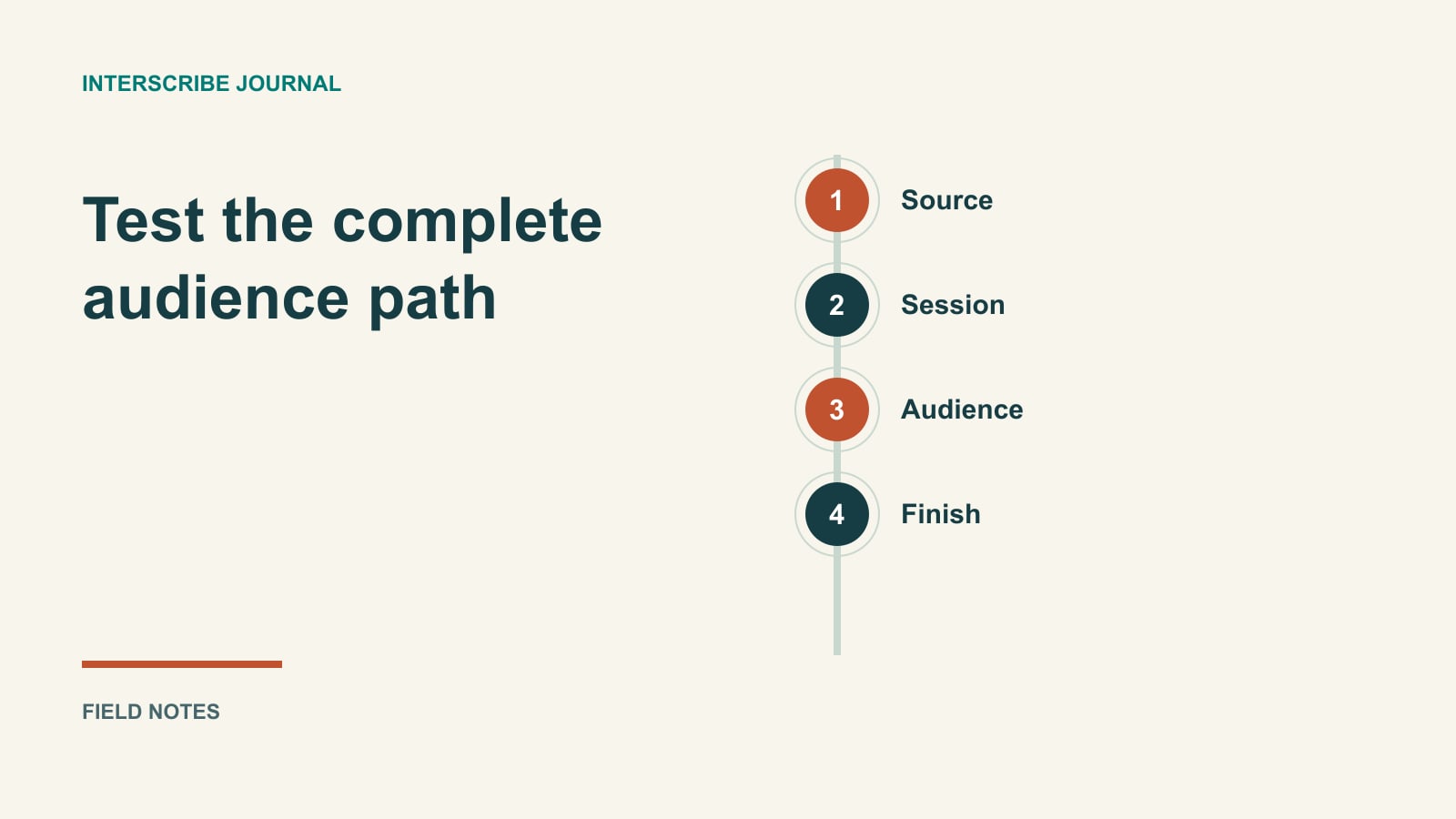
Separate the meeting from the language-support path
You may already have a video meeting, a venue sound system or a stream and want another way for participants to follow live text. Before configuring anything, identify which tool supplies the meeting and which supplies the language-support experience.
This walkthrough follows InterScribe's documented setup paths. It does not establish that InterScribe replaces a meeting tool's screen sharing, moderation, breakout rooms or other features. Keep those responsibilities explicit, including what participants should open and where they should ask questions.
The practical goal is a two-device rehearsal: the operator sends the intended source, and a participant device receives the intended session and language. The steps are based on product documentation; confirm current labels, permissions and enabled services in your own environment.
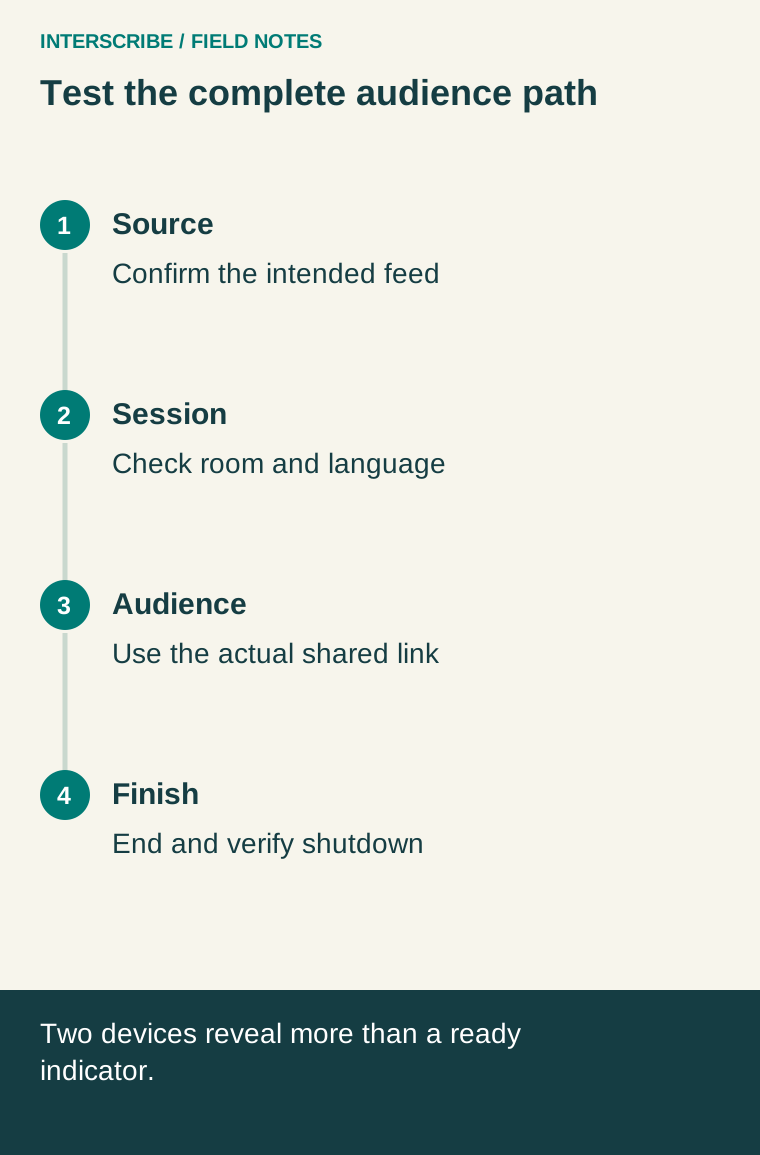
1. Choose the source you actually have
The first-event guide describes three paths. For this computer, the browser uses a selected microphone or audio input. For a computer at the sound desk, a desk agent receives a wired source from the mixing desk. For an existing stream, the room uses an ingress.
Write down the intended source before creating the session: which microphone or mixed feed, which room, and which person controls it. If the source must include remote speakers, a local computer microphone is not automatically a feed of the meeting's remote audio. Have the technical owner establish and test the appropriate routing.
Do not guess a loopback or virtual-audio recipe from the fact that two applications are open on the same computer. The correct route depends on the equipment and software in use. Verify the actual feed while preventing an audience device from feeding its playback back into the source microphone.
2. Create the room path when needed
For a desk agent or stream, the documented sequence is Rooms & audio → New → Room. Give the room a recognizable name. Its AV channel is the source used by sessions assigned to that room.
On the room page, use Set up a desk agent or Add an ingress, as appropriate. The documentation also describes New → Connect audio from Rooms & audio. Follow the relevant setup documentation for that path rather than substituting credentials or settings from a different room.
Use the room's Check audio before the event. The documented check is private and time-limited. Hearing the intended test phrase here establishes useful source evidence, but the full participant check still comes later.
3. Create the session and inspect its assumptions
Go to Sessions → New → Event. The documented essentials include Session name, When and Speaker language, with Room for the room-based path. Confirm the selected room, rather than relying on a familiar name elsewhere in the interface.
For computer audio, the guide describes Audio source → Computer (web browser), or Use a computer when a room was selected. Plan to open the Console on the computer that has the intended sound.
Review the language settings for the required output. A selected speaker language, audience text language and optional voice arrangement are different choices; do not promise a voice just because text is available.
Use Save as draft while preparing if you do not want the session joinable. Before the audience rehearsal, confirm the session is published and its joining conditions are appropriate. The documented Ready to go live? panel helps identify items needing attention, but a checklist state is not a substitute for observing the participant's output.
4. Share the exact audience route
On the session page, use Share to copy the audience link or download its QR code. Give the tester the same instructions a participant will receive. If the event also uses a video meeting, label both links by purpose.
For a session requiring an access code, give the join page or portal route together with the event code and access code. The documented direct event link and QR route produce access denied for that setup. A partnership-pass session may also require sign-in. Follow How your audience joins and test the actual arrangement before sharing it.
Ask the tester to identify the session and select the intended language. Avoid testing only while signed in as the organizer. The point is to observe the joining path intended for that participant, including any access requirements.
Keep the second device's speaker away from the source, or use headphones when testing audio. For a caption-only observation, there is no need to create an audible feedback path.
5. Go live, observe and end deliberately
The session's Go live control opens the Operator Console. The Console guide describes Audio comes from, Run a sound check, the pre-flight list and confirming Go live. Review any configured auto-start behavior as part of rehearsal planning.
Speak a distinctive test phrase with a name, number and negative. Have the tester report what actually appears, not merely that the page opened. If testing a translation, use a competent reviewer for the language and meaning involved.
When finished, choose End session and confirm. Verify the participant no longer sees the session as live. Closing an operator tab is not the same deliberate action as ending the session through its control.
A fictional wrong-room rehearsal
A fictional organizer creates “Workshop rehearsal” using the Auditorium room, while the presenter speaks into a source connected to the Studio. The audience page opens normally, but the expected phrase never appears.
The team checks the room source and realizes that the Auditorium feed contains different audio. It corrects the session's source arrangement and repeats the same phrase. This is a constructed troubleshooting example, not a documented incident or a guarantee that all missing captions have this cause.
| Check | Expected observation | If it fails |
|---|---|---|
| Source | Intended phrase reaches the selected room or computer input | Inspect source routing and selection |
| Session | Correct room, speaker language and publication state | Correct the session configuration |
| Audience | Tester joins the advertised session and chooses the intended language | Inspect the actual link and participant instructions |
| Output | Reviewer sees the key meaning, including the negative and number | Compare source audio, recognized text and target output |
| Shutdown | Test session ends through the confirmed control | Reopen the operator path and verify state |
Keep the rehearsal record
Save the session name, source path, tester device, selected language, observed result and unresolved issue owner. Keep only permission-cleared examples needed for support. If the result is incomplete, revise the arrangement or participant promise before the event.
A successful rehearsal is specific: these people tested this source and this audience path under these conditions. That evidence is useful for running the event; a claim that every meeting feature has been replaced is not necessary.