
A video editor asks for subtitles. A colleague sends a PDF transcript. Both contain words from the session, but only one is intended to carry timed cues for the replay workflow.
Choose the file from the recipient's task, then test the exported result. You do not need to create every format after every event. You do need the right language, an appropriate review, a working file, and a distribution route the intended audience can use.
The steps below follow InterScribe's documented transcript workflow. Confirm the options and permissions in your account, particularly when preparing instructions for listeners rather than organizers.
Choose the output before downloading
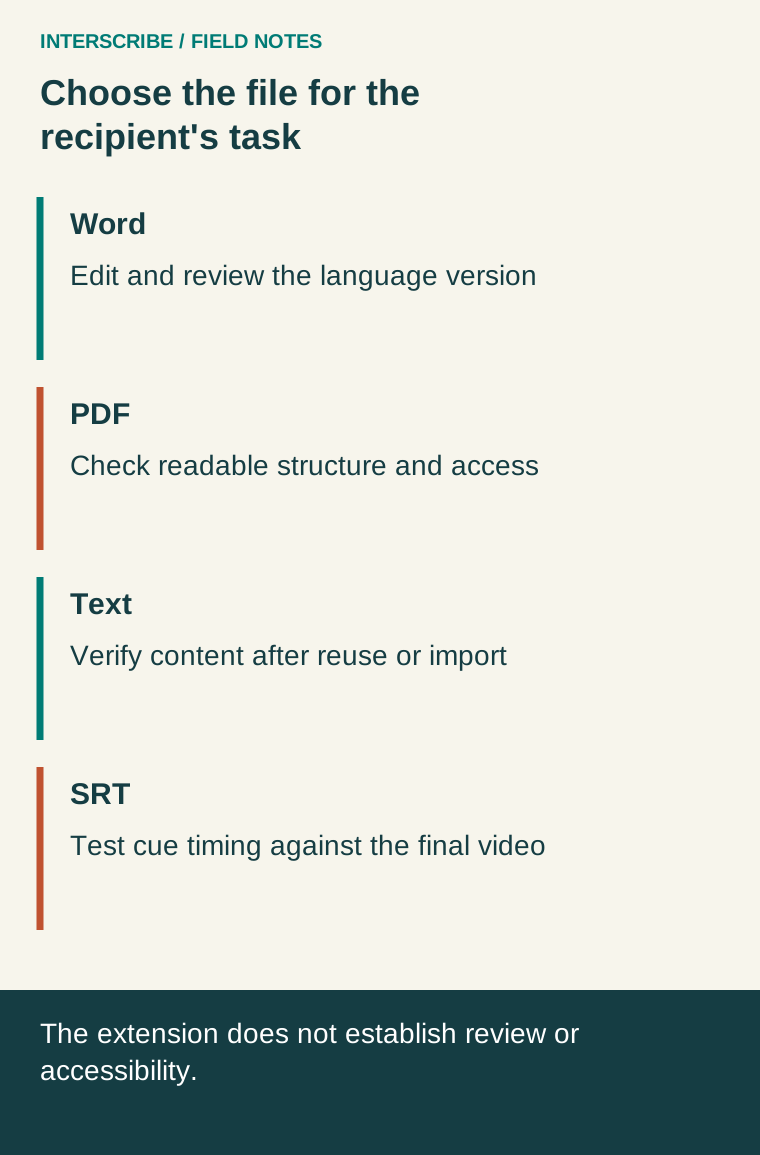
| Recipient task | Candidate format | What to check |
|---|---|---|
| Edit, annotate, or review the wording | Word Document (.docx) | Opens in the recipient's editor; language and version are clear |
| Read a reviewed document in a stable layout | PDF (.pdf) | Text, structure, reading order, and actual assistive-technology use |
| Reuse text in another publishing workflow | Markdown (.md) or Plain Text (.txt) | Encoding, headings where present, and meaning after import |
| Attach timed text to a replay | SRT (.srt) | Correct video version, cue timing, language, and player behavior |
A PDF is not automatically accessible or an authoritative record. A Word document is not automatically reviewed. An SRT file is not proof that every meaningful sound or visual element has been addressed. The file extension describes a container or workflow, not the quality of the content.
Download as the organizer
- Open the session's page and select Transcriptions.
- In Transcripts & translations, find the required language channel.
- Select Read to inspect its text.
- Select Download for that language and choose Word Document (.docx), PDF (.pdf), Markdown (.md), Plain Text (.txt), or SRT (.srt).
The transcript guide documents these formats and the separate listener controls. Each language channel gets its own transcript once captions begin. If the page says transcripts appear once the event starts, confirm the session has produced captions and use Refresh after it starts. A missing transcript is not resolved by renaming a file from another language.
Check the event and language before reviewing. A filename that simply says “transcript” is easy to confuse with another session. Keep an untouched export as a source copy in the approved storage location and make edits in a clearly identified working version.
Give listeners the correct instructions
Organizer downloads and listener downloads are different routes. In the session settings, open Slides & transcript and enable Transcript download if the intended audience should have that option.
After the session, signed-in listeners find Download transcript under More on the listener page. The documented listener formats are Text (.txt) and Subtitles (.srt), in their language, for the whole session. Do not tell them to expect the organizer's Word/PDF menu or assume that anonymous live access includes download access.
Test with the intended recipient role. Confirm that the session's access arrangement and the destination used for any separately distributed file are appropriate. Changing a live-session permission does not retrieve a file someone has already downloaded or correct copies sent elsewhere.
A fictional publishing handoff
A fictional association records a product briefing. The communications editor wants an editable English transcript, while the video editor needs French subtitles for a trimmed replay. The organizer downloads English Word and French SRT from the respective language rows.
The language reviewer notices that a product code and a negation need correction. The team checks the source, updates the appropriate working files, and records who approved the wording. They do not assume correcting the Word document also updates the separate SRT file or the platform's original transcript.
The video editor has removed the introductory waiting period. On import, the subtitle cues no longer align with the trimmed video. The editor adjusts timing in the subtitle workflow and tests the resulting video from its beginning, middle, and end, including each edit boundary.
The final handoff includes the approved file, language, event, exact video version, reviewer, and known limitations. This example is fictional and illustrates file coordination; it does not claim a platform automatically synchronizes every independently edited asset.
Understand a small SRT cue
SRT uses numbered text blocks with start and end times. The Library of Congress format description documents the structure and notes variation in encoding and implementation. Test the actual destination rather than assuming identical behavior everywhere. Library of Congress: SubRip Subtitle format.
1
00:00:12,000 --> 00:00:15,500
Welcome to the workshop.

2
00:00:16,000 --> 00:00:20,000
Please open the practice document.
This invented excerpt places the first cue from 12.0 to 15.5 seconds: a duration of 3.5 seconds. It demonstrates syntax, not a universal reading-speed recommendation or an actual export.
When reviewing your file, check missing words, speaker changes, relevant non-speech information, overlaps, long gaps, and synchronization. If the recording has several cuts, a single global timing offset may not fix all of them. Review translated meaning with a competent reviewer and use the video as context.
Copy this export acceptance record
- Purpose and recipient: Editing, reading, reuse, or replay; named recipient role.
- Source: Session, date, selected language, and export time.
- Working version: Filename, revision, and location of the untouched source.
- Review: Names, numbers, negations, speaker context, and unresolved passages checked against available evidence.
- Destination test: File opens correctly in the actual editor, reader, or player.
- Timing test for subtitles: Video version and checked points, including edits.
- Access test: Intended recipient can obtain it; inappropriate audiences cannot use the chosen distribution route.
- Approval and corrections: Owner, approval date, and method for replacing or notifying recipients about a correction.
Use the live, replay, and transcript guide to assign the separate meaning, timing, and publication reviews. If a passage cannot be verified, make the uncertainty explicit or hold the affected material rather than silently inventing the speaker's words.
Treat distribution as a separate decision
Send only the formats the audience needs, with clear language and version labels. If the file represents a reviewed transcript rather than formal minutes or an approved policy, label it accordingly. Keep confidential or restricted material in the appropriate system.
When a correction is necessary, replace the controlled published copy, update its version, and notify the relevant recipients according to your process. Keep enough of a record to explain what changed. A good export handoff lets the next person use the content correctly without guessing its language, timing, authority, or status.