
A QR code can scan perfectly and still fail the attendee. It may open yesterday's session, take them to a portal with several similar events, or reach an access-denied page when the instructions say to enter a code.
Build the display around the person's next action, not around the square image. Decide where it should take them, write the instruction for that destination, then test the complete printed or projected object from the place people will use it.
Choose the destination before downloading the artwork
Open the session's Share panel, available from the session page or its actions in Sessions. Under 1 · What attendees open, choose This event for the individual session or Your portal for the home page with upcoming events. For recurring sessions, Link the whole series (always opens the next date) provides the next-date route.
Under 2 · Link and QR code, use Copy link or Download QR (PNG). The QR opens the same destination as the selected link. Under 3 · Join with a code, copy the six-character Event code and the Join page for people who type. The Posters and slides section offers ready-made formats using the chosen destination. These controls are described in How your audience joins.
Choose a portal when visitors need to select among events. Choose a session when the sign belongs to a specific talk. A recurring next-date link is useful on a weekly notice, but it is not a link to an old recording or transcript. Put that distinction in the label.
Three codes or links people should not have to untangle
The URL is an address to open. The Event code identifies the event through the Join page. An access code is a separate requirement for restricted access. Calling all three “your code” creates avoidable confusion at the door.
For web access-code sessions, the direct event link and its QR lead to access denied rather than prompting for the code. The documented route is the Join page or portal, where attendees enter the event code and access code. Give those items together. If you make your own QR pointing to the Join page, label that destination accurately and test it; do not call it the session QR downloaded from Share.
In the mobile app, the access code is requested as Pin Code. Partnership-pass access is another condition: people must sign in and have a valid pass. Check listener accounts and passes before advertising an account-free experience.
Copyable poster: public session
The following is fictional copy. Replace every bracketed field with your tested details, and have a speaker of each displayed language review the translation.
Follow today's talk in your language
Scan to open [session title, date and room]. Choose your language on the listener page.
Prefer to type? Open [Join page] and enter Event code AB12CD.
For interpreted audio, bring headphones. Need help? Ask [welcome desk location].
AB12CD is an example, not a working event code. Keep the typed address large enough to read; a tiny URL beneath a large QR is not an effective alternative. Avoid promising a particular audio language until its coverage has been checked for that event.
Copyable instruction card: restricted session
For a fictional staff briefing, a controlled invitation could say:
Join the staff briefing
Open [Join page]. Enter Event code EF34GH, then the access code supplied in your invitation.
The direct event QR will not ask for that access code. If you reach access denied, return to the Join page.
For help, contact [named support route].
Keep the access credential in the intended distribution channel. Printing it on a public lobby sign defeats the organizer's intended audience restriction. If the event requires a partnership pass instead, describe sign-in and the valid-pass requirement; do not substitute an access-code instruction.
Test the final physical object
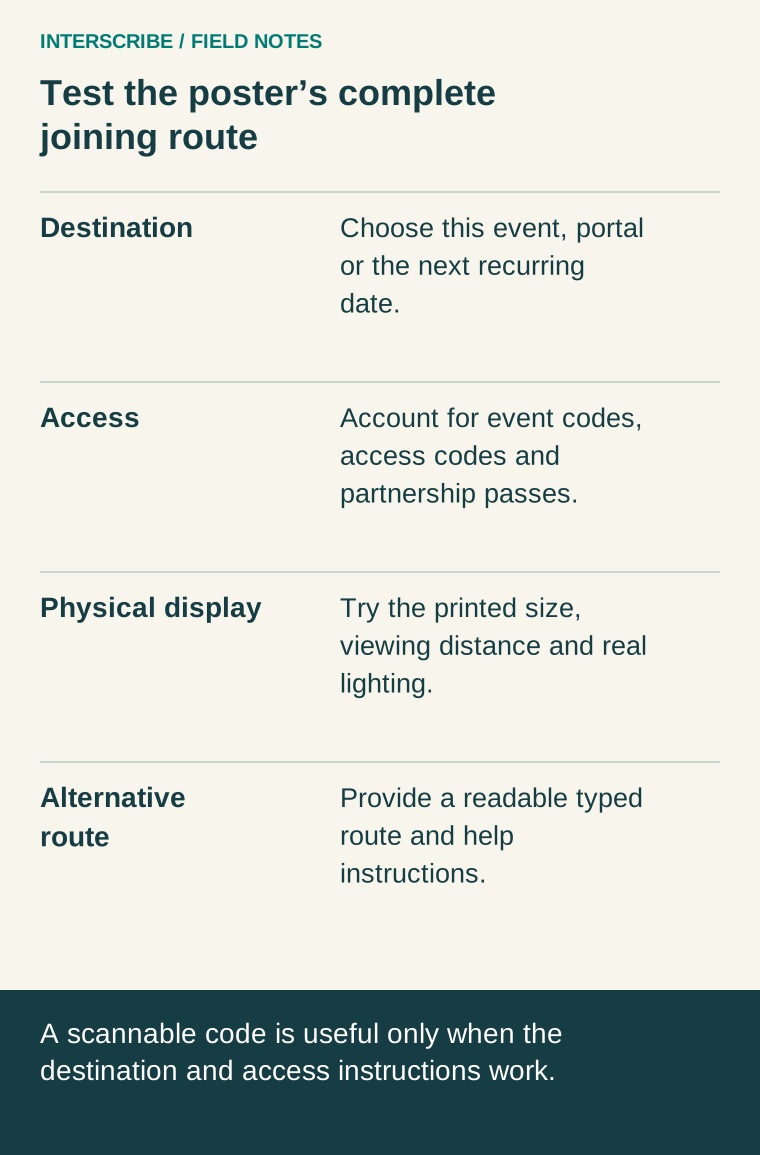
Use high contrast and leave clear space around the QR. Avoid logos, decorative borders or adjacent codes that make the target difficult to identify. These are practical starting choices, not a universal minimum print size. A projected slide, glossy card and wall poster behave differently under real lighting.
Print or project at the intended size. Stand where the attendee will stand, using the actual screen or surface, and try scanning with more than one phone. Include a person who has not seen the instructions before. Ask them to explain what they expect to open before they scan. Then watch whether that expectation matches the page.
Use this observation sheet rather than assuming the platform measures QR scans:
| Field | What to record |
|---|---|
| Asset and destination | Filename/version; session, series or portal; expected title |
| Placement | Entrance, seat or screen; measured distance from tester |
| Conditions | Lighting, glare, viewing angle and displayed size |
| Device | Phone/browser and Wi-Fi or mobile data |
| Result | Scan succeeded; correct destination; next action understood |
| Typed alternative | Address and event code entered successfully |
| Restriction check | Access-code route or pass-holder sign-in tested |
| Owner | Person responsible for replacement and final approval |
A successful scan is only the first result. If the page opens but the event is wrong, resizing the code will not help. If typing works but scanning does not, investigate the asset and placement. If both routes fail on venue Wi-Fi but work on mobile data, escalate the connection separately.
Check again when the sign changes hands
Send the print or production team one approved file and its destination record. After a projector operator puts it into a deck, scan that actual slide. After a venue enlarges a poster, scan the print. A correct source file does not prove a correct final display.
Give hosts a short spoken cue that matches the sign: “Open the Join page, enter the event code, then choose your language.” Keep the help contact visible after the opening slide disappears. Retire signs for ended one-off sessions, and retest next-date signs after recurrence changes. The recurring-session guide explains how to manage those exceptions without changing every ordinary week.