
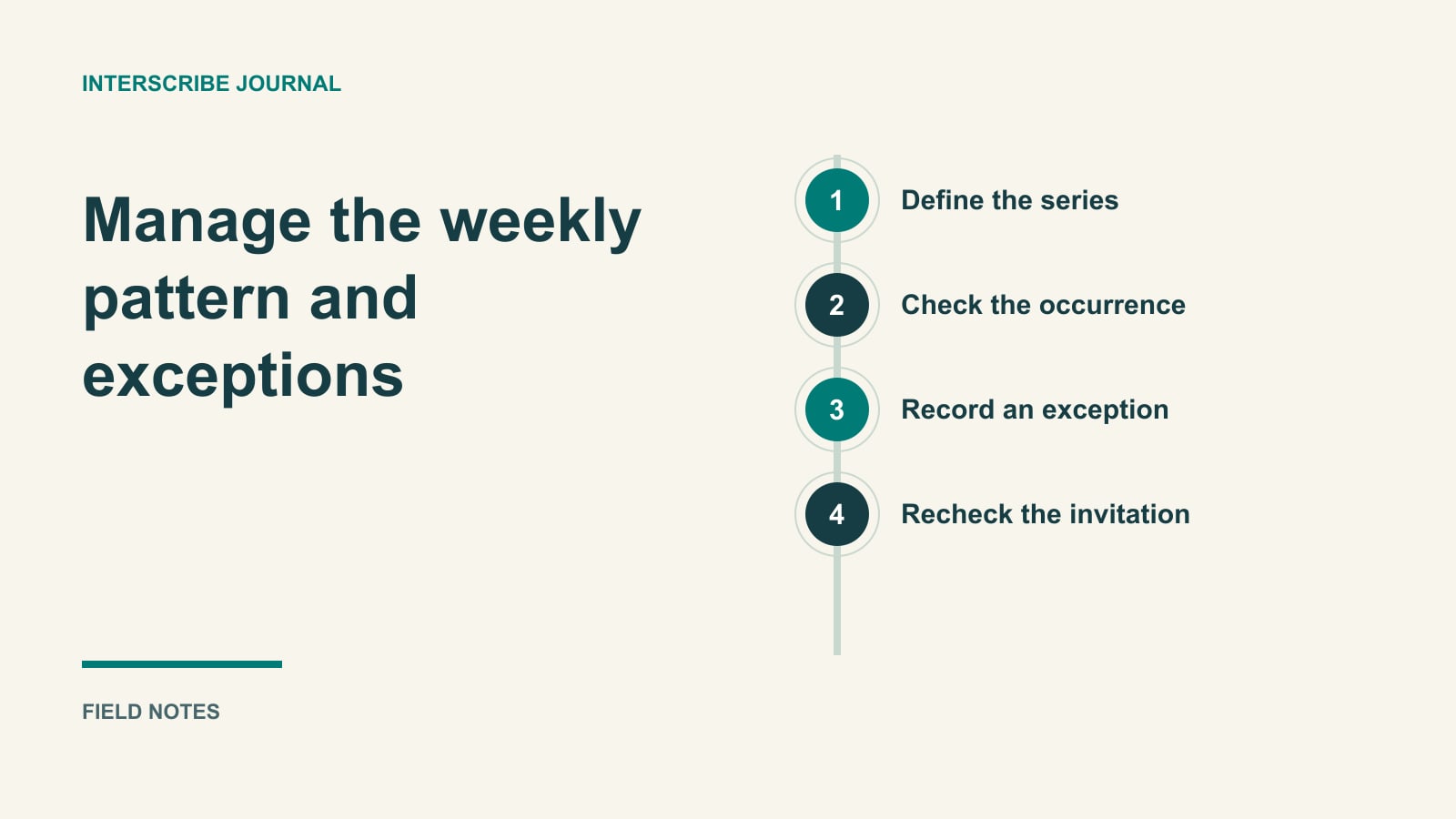
The weekly event is familiar until one detail changes: a holiday moves it to Thursday, a visiting speaker uses another language, or the regular room is unavailable. Copying last week's settings without reading them can carry the wrong assumption into every future date.
A recurring series should make the ordinary week easier and make exceptions visible. The practical tool is a short series record paired with a change ticket for unusual dates. That gives a replacement operator something more dependable than “it is usually the same.”
Create the series with its real starting settings
Before opening the session form, review Event defaults. They are the starting point for new sessions. A conference copies defaults when it is created; later changes to the workspace defaults do not automatically rewrite that existing conference. A conference's sessions start from its own settings. See inherited settings.
Go to Sessions → New → Event. Enter Session name and When, then choose the room, speaker language and audio source. A room brings its AV channel. Read What will happen to check the resulting choices rather than assuming that selecting a familiar room proves everything is ready.
Under When, set Repeats to Daily, Weekly or Monthly. Use Every, choose the weekly days where relevant, and set the end date. Review the number of sessions before confirming. Create session publishes a session; Save as draft keeps it hidden. The session guide explains these controls and the conflict checks for overlapping room or audio use.
A published schedule is not a completed audio rehearsal. Confirm the source can deliver the intended speaker, the language choices are appropriate, and the next event can actually go live. Only select Auto-start deliberately; recurrence by itself is not an instruction to start every session unattended.
Keep a series setup sheet
Here is a fictional example for a church's weekly teaching service. These are planning choices, not a reported customer configuration.
| Field | Completed example |
|---|---|
| Series and owner | Sunday teaching; Mara owns the schedule |
| Local time and date range | 10:00, Sundays through the agreed term; timezone checked in the form |
| Room and sound | Main hall; podium and reader microphones on its named AV channel |
| Spoken language | English, checked again for guest speakers |
| Language preparation | Selected teaching vocabulary; named Spanish-language reviewer |
| Access | Public joining for this series; private events use a separate instruction card |
| Share destination | Whole-series link; welcome team tests the next date |
| Relief | Joel can run preflight when Mara is absent |
| Follow-up | Reviewed transcript destination and editor recorded separately |
Do not make the sheet a second hidden settings database. Record the important choices and where they are checked. The session itself remains the place to verify its effective configuration.
Choose the sharing destination deliberately
In Share, under What attendees open, choose the intended destination. This event points to an occurrence, Your portal gives the audience a home page, and Link the whole series (always opens the next date) is the recurring option. Copy or download the corresponding assets only after choosing. See How your audience joins.
A next-date link does not promise a permanent archive of the occurrence someone attended last month. Keep the reviewed follow-up destination separate if people need historical material. Label the weekly link “Join the next service” rather than “Read last week's transcript.”
For a session requiring an access code, the web direct link and QR do not provide a code-entry prompt; they lead to access denied. Give the Join page, Event code and access code together, or the documented portal route. Partnership-pass sessions additionally require sign-in and a valid pass. Do not place “no account needed” on every recurring poster; check listener accounts and passes.
Fictional exception: one service moves
In the example, a building event means one Sunday gathering moves to Saturday afternoon. Mara opens that occurrence, changes its time and chooses This event only when saving. She then opens the following ordinary Sunday to confirm it has not moved.
A different decision applies when the congregation permanently changes its start time. After agreeing the effective date, Mara changes that occurrence and chooses This and all future events. She checks the first changed date and a later date, then has the welcome team test the public series link. These are distinct operations; “update the series” is too vague for a handoff.
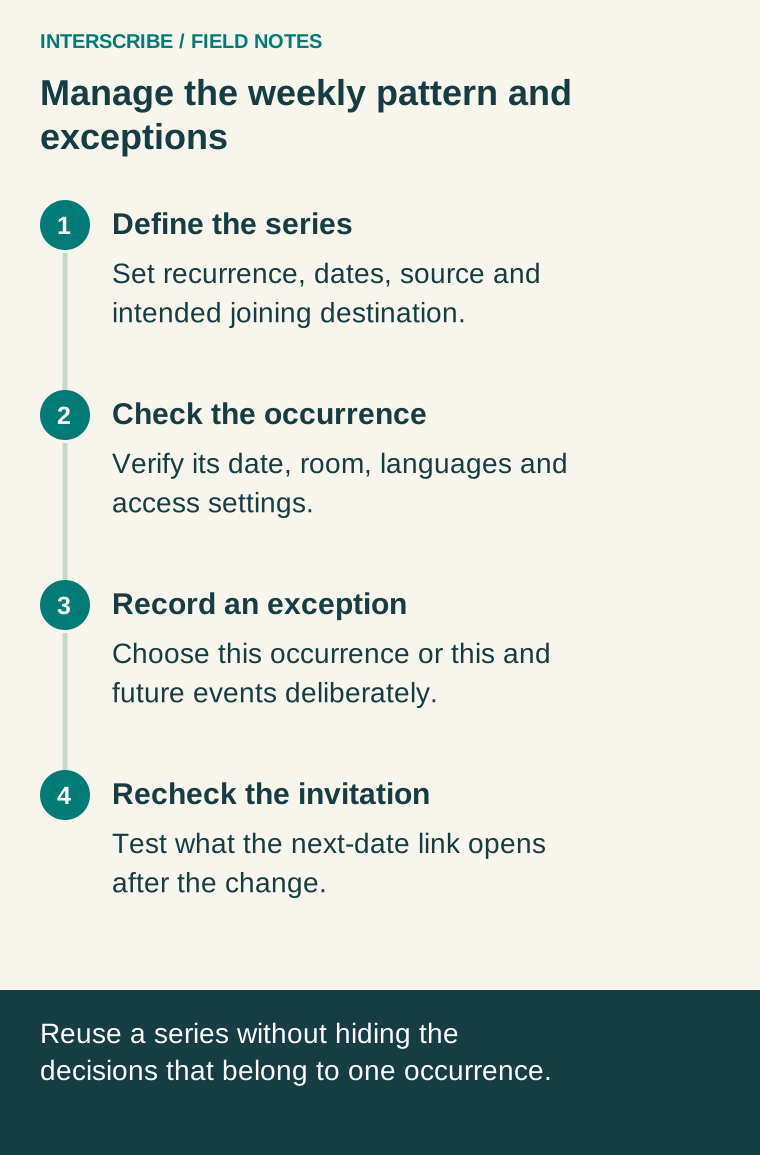
Use this change ticket before saving:
- Reason and effective date:
- Setting changing: time, room, source, language, access or another named setting.
- Scope selected: this event only / this and all future events.
- Conflicts resolved: room and AV channel checked.
- Unaffected occurrence inspected: date and result.
- Audience route tested: destination opened and visible date/time.
- Communication owner: who updates the announcement and physical signs.
- Rollback decision: the previously agreed values and who may restore them.
Do not confuse defaults with a bulk update
A change to a conference's Settings can offer Apply to upcoming sessions? Upcoming means not live and not ended. Choose whether to apply the listed changes; Not now preserves those sessions' own values. A room-bound session keeps its room's AV channel, while a conference channel applies to sessions without a room.
That mechanism is different from editing one repeating session. Write which operation you used in the ticket. Avoid changing workspace defaults to repair a single Saturday exception; it makes the intent hard to inspect and can affect unrelated new sessions.
Make the backup exercise observable
Ask the backup operator to find the next occurrence without help, explain its access route, identify the audio source, and run a short spoken rehearsal. Include one deliberate mismatch, such as a stale date in the printed announcement. Success means they find and resolve it before opening to attendees, not that they watched a training video.
After each gathering, record a concrete incident and its owner: “the welcome sign pointed to the ended occurrence” is useful; “joining was confusing” is not yet actionable. Update the relevant setup record, then test the repaired route. Keep vocabulary maintenance and transcript review in the same weekly handoff without assuming they happen automatically when the next session is created.